The pictures are great!! How do I get them?
Here we will walk you through the process of finding your dog, choosing the right ones, adding them to your cart, and downloading the digital print to your computer.
Clicking on the link or scanning the QR code will get you to the viewing page. Pictures are listed by the class and jump height. The dogs should be in the order that they ran.
If you can't find the class, check the heading for the drop-down labeled "MORE". That should have every other class that would not fit across.
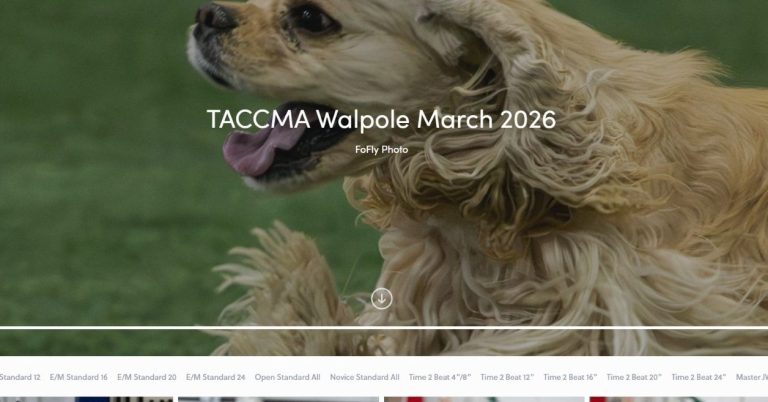
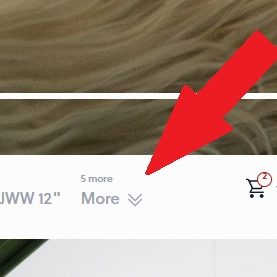
First Step: The Gallery
Step Two: Scroll & Choose
1000's of shots were taken - 100's of them made it through the editing process. Depending on how many dogs were in the class, there may be a lot of scrolling. But then again, enjoy looking at all the other dogs until you get to yours.
Next: Choose, Star, or Buy
As your mouse lingers over each pic, a star will appear in the bottom left and a handbag with a plus sign in the right.
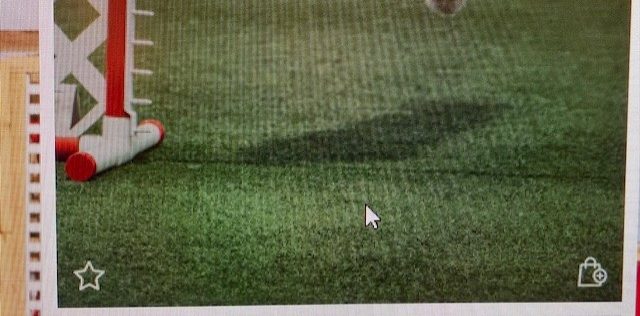
The Star saves it as a FAVORITE.
The Shopping Bag places it in your CART.
If you click on the picture, it will open on its own, separate from the rest. The star and bag will be on top. To return to the gallery, click the X in the upper right.
Star = My Favorites
So many to choose from! No worries! When you find one you like, click the Star. When the star is activated, a dark star will appear in the upper right
Once you have starred all the ones you like, go to that dark star in the corner, and you can see all and only the ones you liked. Its much easier to choose from here!
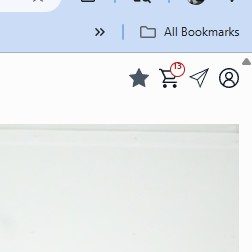
Heading
Finally Ready To Buy
Putting a photo in your shopping cart can be done two ways:
Click on the photo and click BUY Photo,
While scrolling, click the small shopping bag in the bottom right corner,
Your only option (at the moment) is Digital Photo. Clicking that box will prompt you to choose a Full Resolution or Social/Sharing-size photo. Pick one, and it is added to your cart.
Check Out
This is just like every online checkout. Check whether any discount codes were offered on FoFLyPhoto.com. Click Purchase.
Download the photos
You should have moved to a receipt page. Your purchases are there, on a line that says "download". Once highlighted, clicking will move all your photos to your DOWNLOADS on your computer. You will have to Extract All to use them. OR, by clicking Download Individually, it will open your purchases as pictures. Click on each picture, and it will download them to your Downloads folder - no need to extract.
YOU OWN THESE FOREVER, AND YOU HAVE THEM IN THE CLOUD!
If you ever need to download them again, go to MY.PHOTIVO.COM. When you enter your email address, all your orders will appear!!